


We built a Skill, we tested it, and we were just about to celebrate. Oh, wait. I promised we would talk about maintaining it — apparently we haven’t suffered enough.
First, why would I need to change it at all?
If you perform a task twice a year, it’s not particularly important to your professional role, and getting a slightly different result wouldn’t cause much trouble, you probably don’t need a dedicated Skill.
But.
If a task is completely unrelated to your main responsibilities, why would you even spend time building, refining, and testing a Skill for it in the first place?
Chances are, you wouldn’t.
You probably created your Skill because you’re a specialist in something. You know how a particular process should work, what mistakes people tend to make, and which exceptions matter. You wanted to turn some of that knowledge into a reusable tool.
And here’s the thing about professional expertise: it doesn’t stand still. So why should the Skill you built around your expertise remain unchanged?
Your Skill is only as current as the knowledge behind it
Imagine you created a Skill for performance reviews.
It knows your company’s rating scale, calibration rules, manager guidance, and review forms.
You tested it. It works. Everyone is happy.
Six months later:
You redesign the calibration process.
Managers keep making the same mistake, so you introduce an additional check.
Legal introduces a new requirement.
Or you simply learn a better way to approach the whole thing.
Now you have a Skill that faithfully reproduces how you used to work, not how you work today. This is the most important reason to update it.
Because your professional judgement has changed, and the instructions haven’t caught up.
Can’t I just open the file and change it?
Of course you can. Change, save, test your Skill, and then it is finally done. You know it works. Or rather, you know the version you tested works.
Until two weeks later, when the Skill starts behaving strangely and you think: Wait. Did it always do this?
You open the file and realise you no longer remember what you changed, why you changed it, or whether the previous version was actually better.
This is where versioning becomes useful. Because you want to answer three very ordinary questions: What changed? Why? And can I go back?
That’s essentially what we’re trying to achieve.
What сould possibly break? It’s just a text file.
True. But here’s the catch: the file itself doesn’t have to break for your Skill to stop working properly. Changes to an LLM’s instructions don’t necessarily affect only the part you intended to improve. Instructions influence each other.
Let’s use our performance review skill again.
Suppose you’ve noticed that managers sometimes receive vague feedback, so you add a new rule:
Always provide a clear recommendation.
Sounds reasonable. Except your Skill already contains another instruction:
When evidence is insufficient, explicitly state that no reliable recommendation can be made.
Now you’ve created a conflict. Nothing explodes. You don’t get an error message.
The Skill simply starts giving you slightly worse answers, or confidently handling a sensitive situation in a way you never intended.
And because those answers may still look perfectly plausible, you might not notice immediately.
Does that mean testing everything again?
If you’ve only corrected a typo, of course not.
But if you’ve changed the actual instructions, I have some bad news for you: yes, you need to test your Skill again.
The good news? You don’t necessarily have to run every single test again, especially if you’ve made a very specific change. You can start with the cases directly affected by your update, then check that the things you didn’t intend to change still work. For more substantial changes, I’d run the full set.
And here’s even better news: you don’t have to invent a new testing strategy every time. Remember the test cases we created and saved in Your Skill Works. Prove It? This is precisely why we kept them.
You already have examples of what good results look like, what failures look like, and which edge cases tend to cause trouble. And that is one more reason to keep your test cases somewhere you can easily find them.
Now you reuse those tests against your updated Skill.
Fine. But why do I need versions?
Because knowing that something went wrong isn’t enough. You also need to know what changed and how to get back to the version that worked.
I can already hear someone saying: Come on, we’re an agile organization! People over processes, remember? Which means for People Team:
On Monday, you uses a Skill to help managers prepare performance review feedback.
On Wednesday, you update the calibration rules.
On Friday, your colleague shares an output that contradicts the new policy.
But even agile teams need to know which instructions they’re following. This matters even more when a Skill is shared across a team.
Two people can both say they’re using the Performance Review Skill while actually working with different instructions. And neither has any reason to suspect it.
A version number won’t automatically synchronise their copies, but it gives you a way to identify the difference. And if an update introduces a problem, knowing the last working version gives you somewhere to go back to.
Start ridiculously simple
You don’t need GitHub, a release pipeline, or a Jira project. You can simply keep your files in a folder on your computer.
Let’s say now you want to make your first update for Performance Review Skill.
Start by creating a file called CHANGELOG.md in the same folder as your SKILL.md. This is where you’ll record what changed, when, and why.
For example:
# Performance Review Skill — Changelog
## v1.1 — 14 October 2026
- Added guidance for employees with less than 3 months’ tenure after managers repeatedly asked about these cases.
- Updated calibration rules to reflect the new company policy.
- Added a test case for employees with insufficient performance data.
## v1.0 — 28 September 2026
- First tested version.
Could you put a Changelog section directly inside SKILL.md instead?
Yes, you could. But I wouldn’t recommend starting that way. A change log is information for you, not instructions the LLM needs to follow. Keeping the two separate makes it easier to find things and avoids unnecessarily adding historical information to your Skill.
Remember, your active instruction file must still be called SKILL.md. That’s the filename your AI application expects when loading a Skill. So please don’t start creating files called: SKILL_FINAL_v7_really_final_THIS_ONE.md
We’ve all seen where that road ends. Instead, keep one active SKILL.md and save previous versions in a separate archive folder.
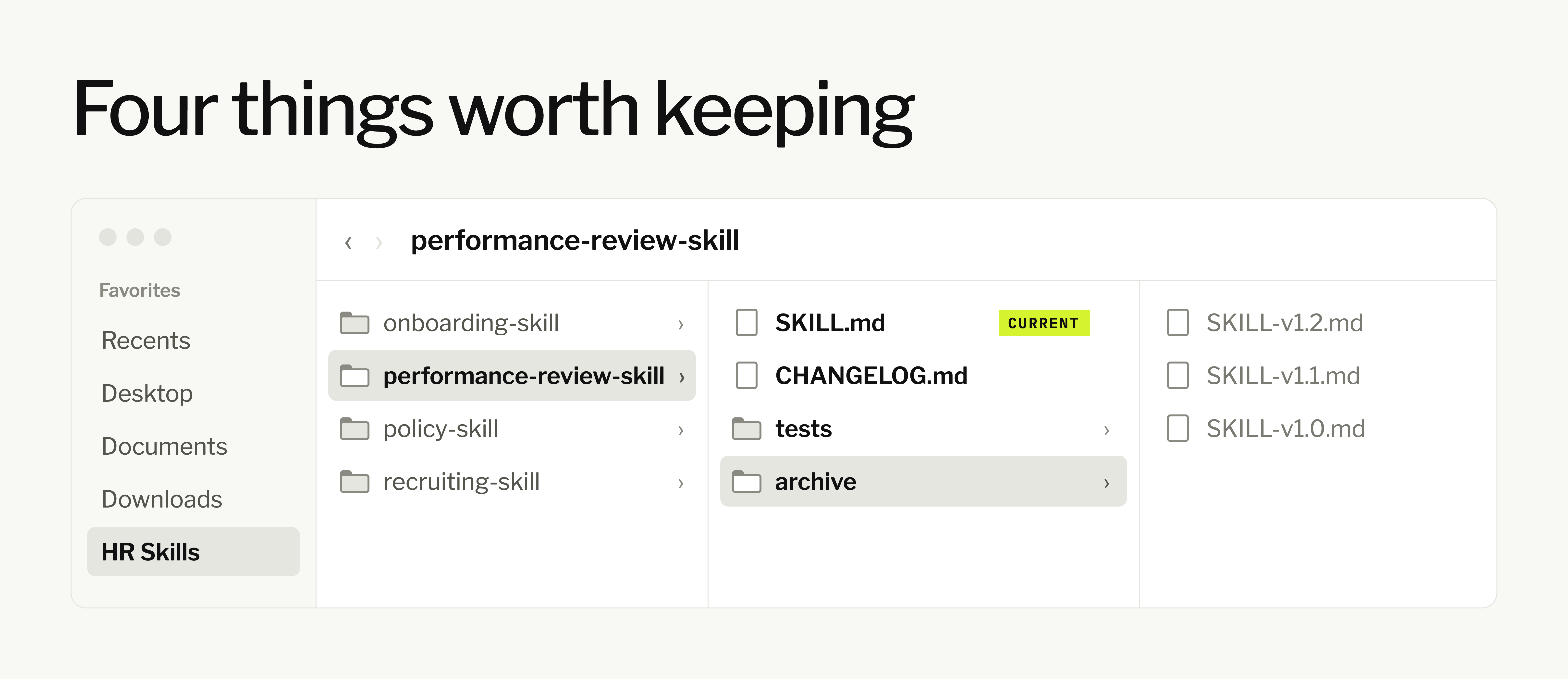
Your working folder might look like this
Here, SKILL.md is your current version, CHANGELOG.md records what you changed, tests contains the test cases we prepared earlier, and archive keeps older versions you can return to if necessary.
This is your working folder, not necessarily the folder you upload to your AI application. The point is to have one active version and a way to find the previous ones.
Are There Any Rules for Version Numbering?
For God’s sake, no. You can use dates (2026-10-14) or simple sequential numbers (v1, v2, v3), or a slightly more numbers (v1.0, v1.1, v2.0).
I prefer the last one because it helps distinguish ordinary improvements from substantial changes. My simplified approach:
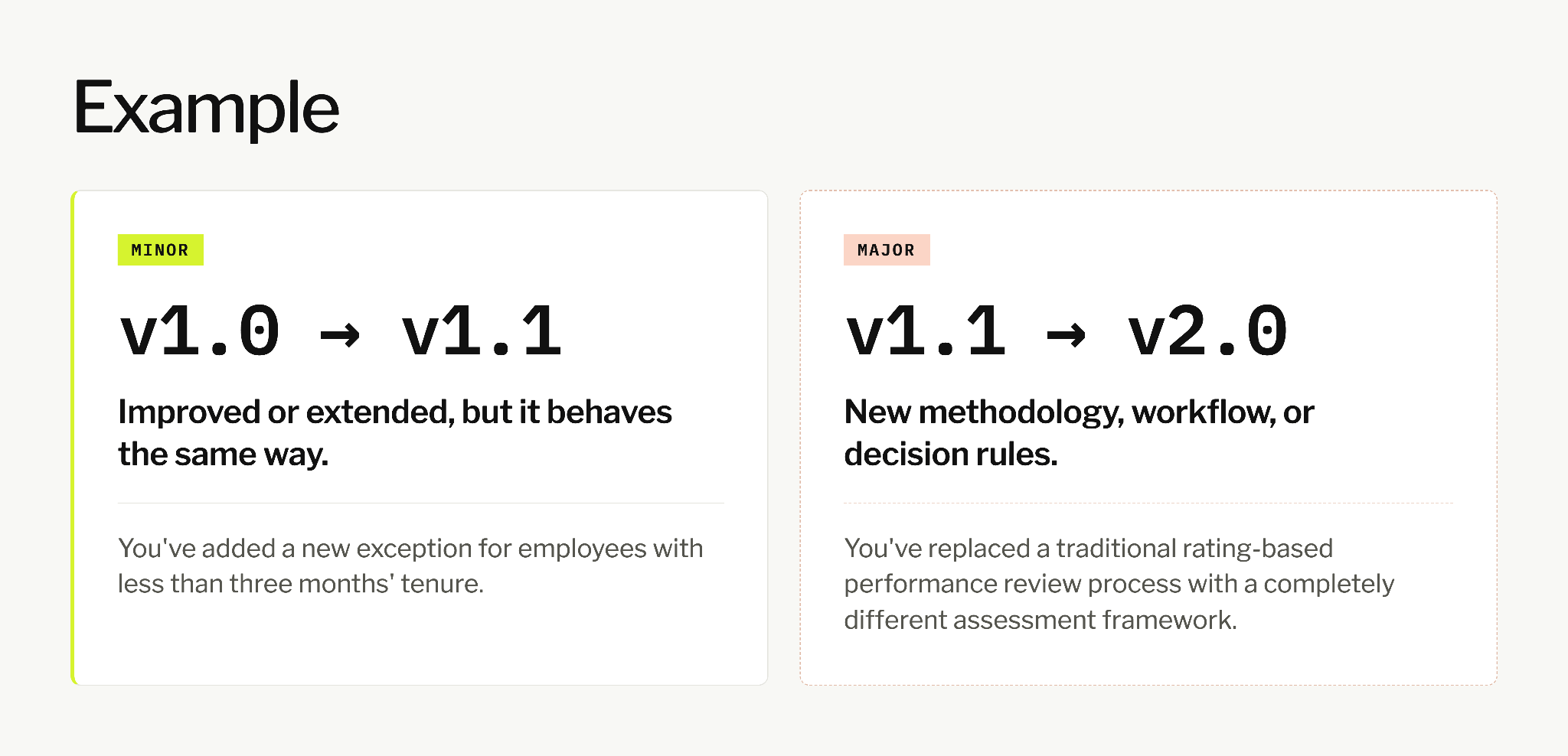
Keep a change log that Future You can understand
A version number tells you which version you’re using. A change log tells you why that version exists.
Something like this is perfectly sufficient:
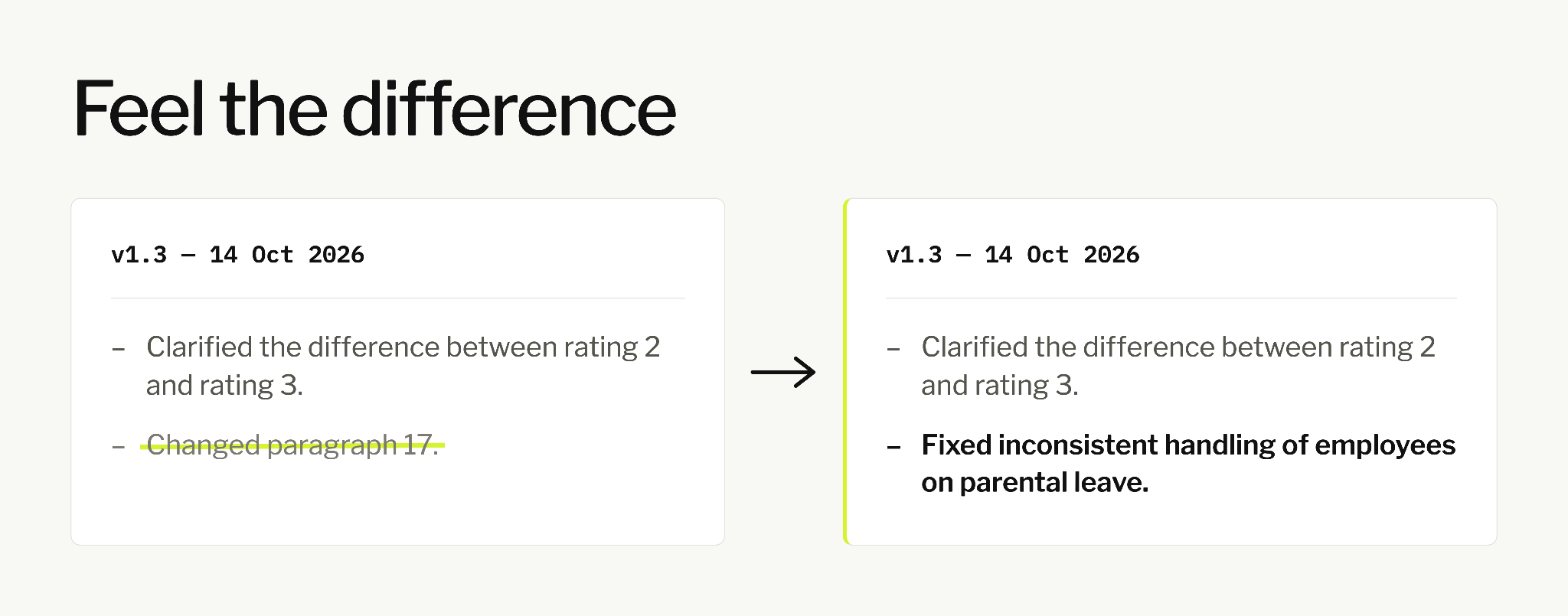
In three months, you’ll have no idea what paragraph 17 was about.
And if you eventually share your Skill with colleagues, versioning helps you make sure everyone is using the same, up-to-date instructions. No more wondering why two people running supposedly the same Skill are getting different results.
Something broke. Now what?
Let’s imagine you’ve updated the calibration rules, and suddenly your Performance Review Skill starts recommending the highest rating to employees who haven’t met the required performance criteria.
You know it worked correctly before. Now what? First, let’s narrow down what actually went wrong.
Step 1. Check which version you’re using
Make sure your AI application is using the updated Skill, not an older installed copy.
Remember that editing SKILL.md on your computer doesn’t necessarily update the version installed in ChatGPT or Claude.
If you use an uploaded Skill, you’ll generally need to replace the old installation with your updated Skill package. The exact steps depend on the application and how you’ve installed it.
If you share Skills with colleagues, check which version they were using when the problem occurred.
Step 2. Reproduce the problem
Go back to the conversation where you noticed the problem and copy the original input.
Then start a new chat with the same Skill enabled, paste the input, and run it again.
I’d try three times, preferably in separate new chats with the same model and settings. It’s not a scientific threshold, just a quick sanity check. If the same mistake appears repeatedly, you’ve got a reproducible problem. If it happens only once, it may be an occasional variation in the LLM’s output.
And even if the mistake appears only once, don’t automatically ignore it, especially if it could affect an important HR decision.
Step 3. Check the change log
Open CHANGELOG.md and look at what changed between the last working version and the current one.
Did you modify the rating rules? Add an exception? Rewrite the evaluation criteria? Now you have somewhere specific to investigate.
Step 4. Let an LLM help you find the problem
Here’s the best part: you can ask an LLM to do most of the comparison for you.
I’d start a separate troubleshooting chat, rather than mixing debugging with the performance review task itself.
Provide the LLM with your previous SKILL.md, the updated version, the relevant change log, and an example of the incorrect output.
Then ask:
Compare these two versions of my Skill. The previous version handled the attached test case correctly, but the updated version produced an incorrect result. Identify which changes might have caused this, explain the possible conflicts, and suggest the smallest necessary correction. Don’t rewrite the entire Skill.
The LLM can compare instructions, identify potential contradictions, and suggest a fix.
But remember: its explanation is a hypothesis, not proof. You still need to check whether the suggested fix actually works.
Step 5. Test the fix
Save the corrected instructions in a working copy of SKILL.md.
Run the test case that originally failed. Then rerun your saved test cases, as we discussed earlier. You want to make sure the correction hasn’t introduced another problem elsewhere.
If the tests pass, record the fix in CHANGELOG.md, assign a new version number, and update the installed Skill.
Step 6. Roll back if you can’t fix it
Sometimes you won’t find the cause immediately. Or the new version will keep producing unacceptable results despite your attempts to fix it.
In that case, don’t spend the entire afternoon fighting with the instructions — return to the last tested, working version.
Find it in your archive folder, restore it as the active SKILL.md, and reinstall it in your AI application if necessary. That’s why we kept the previous versions in the first place.
You can investigate the failed update later, without continuing to use instructions you no longer trust.
One last thing: not every unexpected result is caused by SKILL.md. The model, input data, other instructions, or application settings can also affect the output. But now you have a previous version to compare against, a history of changes, and a collection of tests.
Which is considerably better than trying to remember what you edited three weeks ago.
So here’s your maintenance routine
You don’t need to become a software developer to maintain a Skill. And you don’t have to turn every improvement into a bureaucratic event.
But if you’ve invested time in turning your professional expertise into a reusable tool, it’s worth making sure that tool keeps up with you.
And when something goes wrong (and it will!) you’ll have a much better starting point than opening three almost-identical files and trying to remember which one worked.
Next time, we’ll talk about how to work with Skills created by other people and, most importantly, how to make sure they’re safe and trustworthy.
If you know someone who keeps a perfectly good working file, a slightly improved copy, and something called final_final2_revised.md, send them this post. They might recognise the problem.
And by the way,
“—” does not necessarily mean a text was written by AI.
Press Option + Shift + - on a Mac.
Or Alt + 0151 on Windows.
You’re welcome.
Now you’re AI too.