


In the last post, we talked about why task-specific instructions do not always belong in your Project instructions.
Sometimes they deserve their own Skill, which immediately creates another question: What does a Skill actually look like inside?
But first, one very basic question I skipped last time.
Where can you actually use Skills?
Skills are not a Claude-only thing. SKILL.md is part of the open Agent Skills format, which means it is not tied to one particular model. What matters is whether the product or agent you are using knows how to discover and load Skills.
Claude supports custom Skills directly. OpenAI currently supports Skills in ChatGPT, Codex and its API, although availability in ChatGPT depends on your plan and workspace settings. Other AI tools can support the same format as well.

Let’s dissect a real HR Skill
Luckily, we do not need to invent an example.
There is a public GitHub repository called knowledge-work-plugins with Skills for different areas of knowledge work — including a performance-review Skill for HR. The repository is intended as a collection of reusable workflows that can be installed and customised.
So let’s take a real SKILL.md apart and see what this creature actually looks like. No improvements yet, today we are just doing anatomy.
1. Metadata: the label on the box
This Skill starts with three metadata fields:
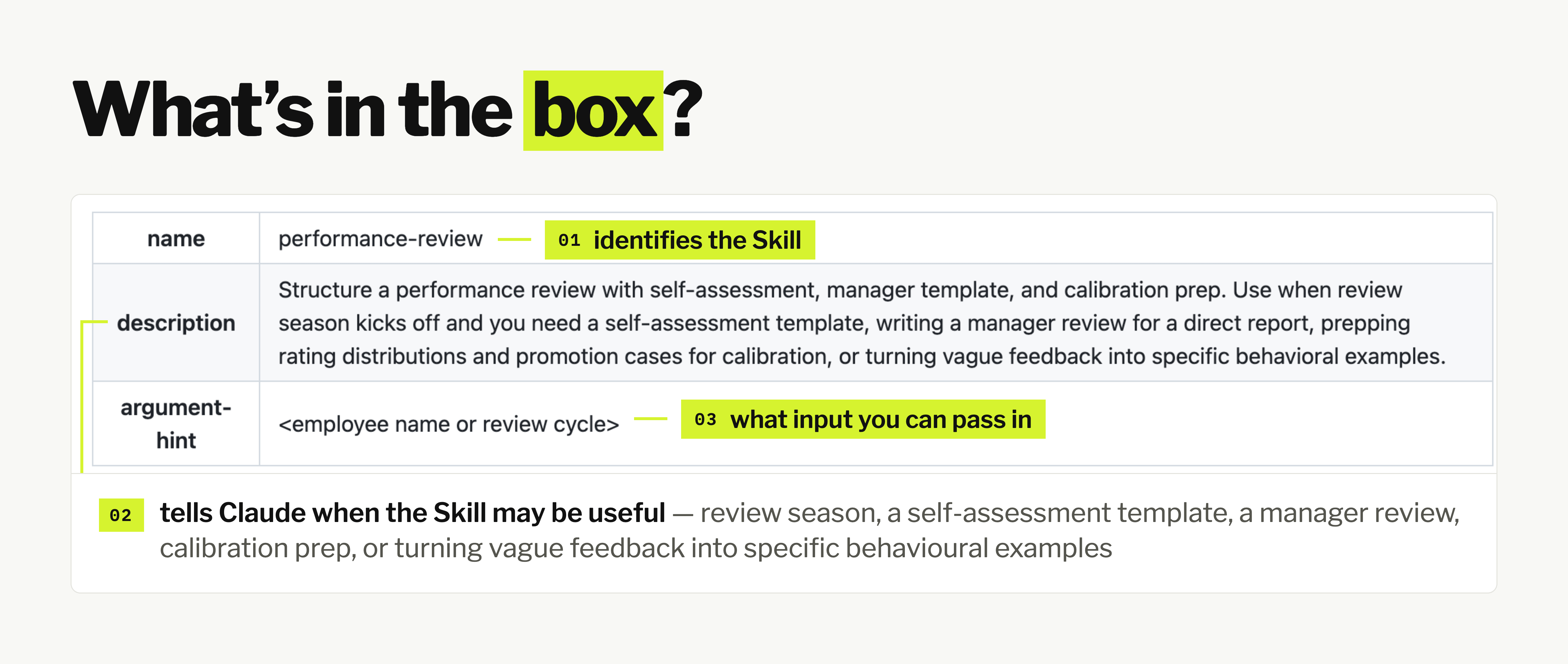
Think of this part as the label on the box.
Before AI gets to all the detailed instructions below, it needs some way to understand: What is this thing? and When might I need it?
2. A short definition of the job
Immediately after the metadata, the Skill gives itself a very short job description:

That is it. Not: You are a world-class HR leader with extensive experience in talent management, organizational psychology and employee development...
Apparently AI can survive without a motivational introduction.
3. Usage and Modes: how to use it
Next comes something very practical: how to use it. The Skill supports a general command and then several more specific variants.

This is a useful way to understand the boundaries of a Skill. A Skill does not have to mean: one file = one tiny action. This Skill has three modes: self-assessment, manager, calibration. If the user has not specified which one they need, the instruction says to ask.

These three tasks are different, but they clearly belong to the same performance-review workflow. So the Skill can first identify which version of the job it is doing and then follow the appropriate instructions.
If you are not used to command-line-looking syntax, this is much simpler than it looks.
/performance-review is the command associated with this Skill.
$ARGUMENTS is just a placeholder for whatever information comes after the command.
So, for example:
/performance-review self-assessment means:
Use the performance-review Skill. I need the self-assessment version.
And: /performance-review manager Alex
means:
Use the performance-review Skill in manager-review mode, for Alex.
In the second example, the value of $ARGUMENTS is essentially manager Alex.
You do not type the literal word $ARGUMENTS. It is there in the Skill file to tell the system: take whatever the user supplied after the command and pass it into this workflow.
So now we can see why the argument-hint from the metadata was useful: it gave us a clue about the kind of additional information this Skill may expect, such as an employee name or review cycle.
One important thing: this is the usage syntax of this particular plugin. Skills do not always have to be manually summoned with a /command. You might simply ask “Help me write Alex’s performance review” and the system can decide that the performance-review Skill is relevant and load it.
So the important part here is not the slash itself. It is that the Skill can receive task-specific input when it is used. Because it’s smart.
And once it has that input, it needs to decide which version of the job to perform. That is exactly what the next section does.
4. Output: what should the result look like?
This is by far the biggest part of the file. Each mode has its own output structure, but they follow the same basic logic, so let’s take just the first one and see how it works.
For a self-assessment, the Skill creates sections for things like accomplishments, goals, growth areas, challenges and goals for the next period.
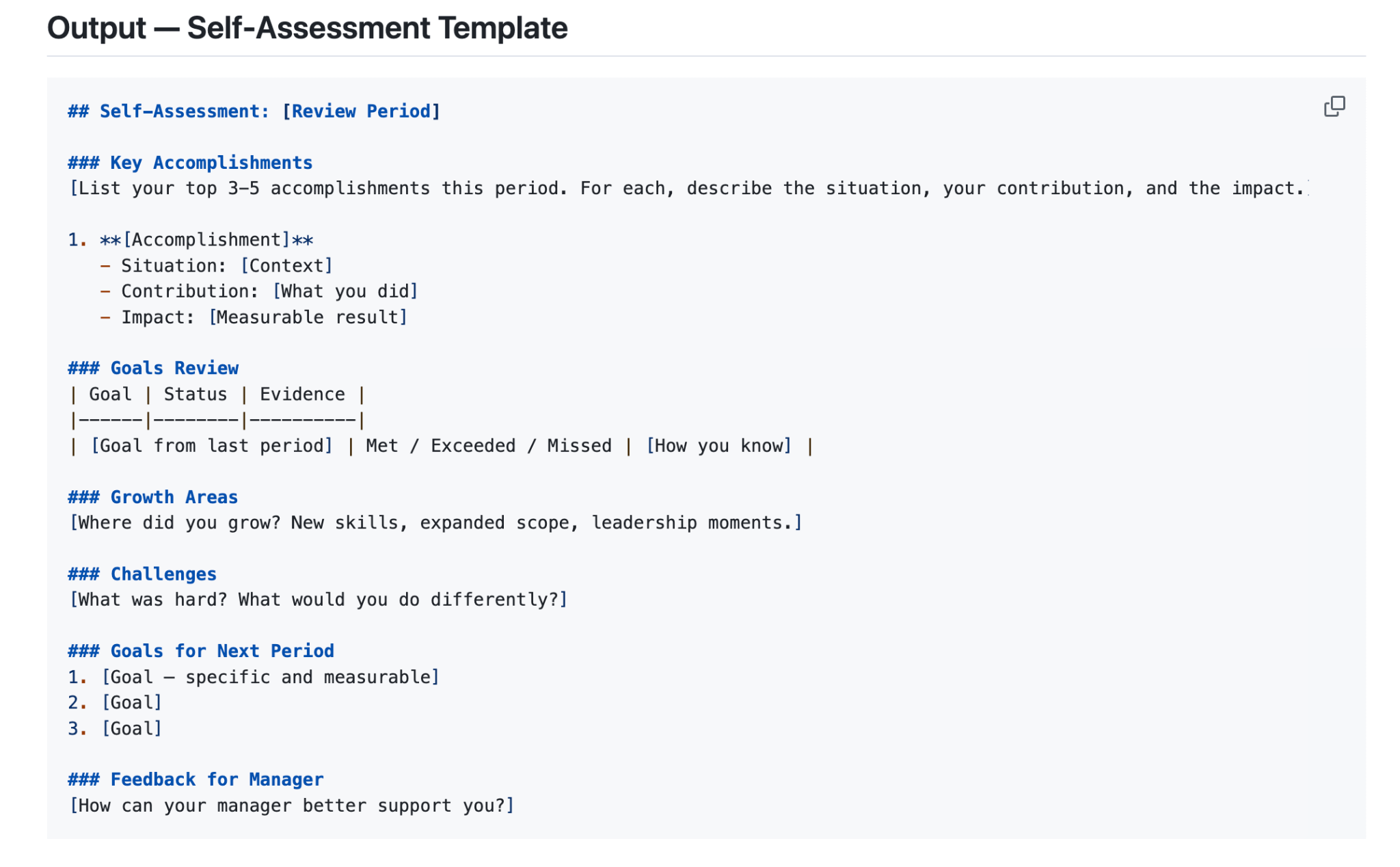
That tells us something important about what lives inside a Skill. Instructions do not have to be long explanations of how AI should think. Sometimes the most useful instruction is simply: This is what a finished piece of work should contain.
And if you do not yet know what that finished format should look like, that is completely fine. Use AI to figure it out with you, just do that outside the Skill — a Skill should contain the reusable result of that thinking, not the entire brainstorming session. That gives AI a much clearer definition of done.
5. Conditional instructions: use other information when it exists
Then the Skill has a section called If Connectors Available.
Notice the wording here: if available. The Skill can describe a richer workflow without assuming that every user has exactly the same systems connected.
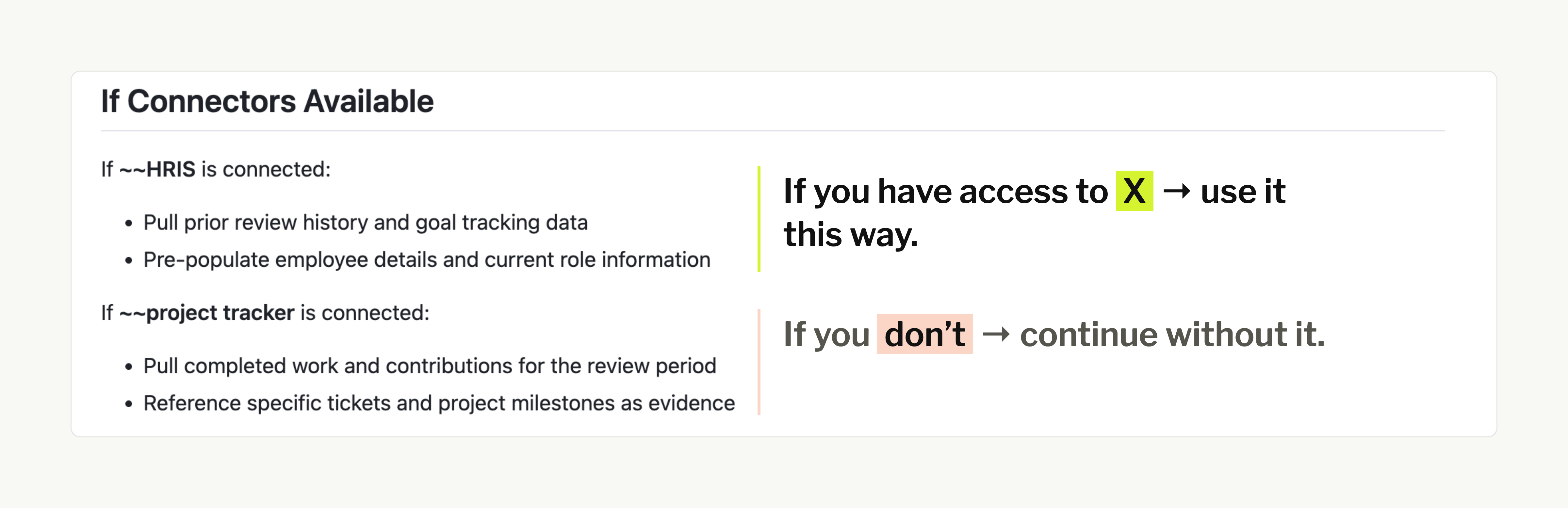
This becomes particularly interesting once Skills start interacting with company context, files and tools.
6. Tips: the professional rules of the job
Finally, the file contains four short principles for writing good feedback.

The Output tells the AI what to produce. Tips tells AI how to judge the quality of what it is producing.
So instead of simply polishing:
Alex needs to communicate better.
into:
Alex would benefit from strengthening his communication skills.
This is an important part of a Skill: not only the format of the work, but the professional criteria the work should meet.
Next: let’s break it
Now that we have looked through the Skill and seen how it is put together, we can ask a much more interesting question: Okay, I found skill.md on GitHub or through a simple Google search.
So… it must be a good Skill, right?
Not necessarily. Sorry for saying that.
In the next post, we will go through the same Skill again — but this time with our critical HR brain switched on: what is missing, which assumptions are hiding inside seemingly innocent instructions, and what I would change before letting managers anywhere near it.
For now, send this to the colleague who sees SKILL.md and immediately closes the tab.
And by the way,
“—” does not necessarily mean a text was written by AI.
Press Option + Shift + - on a Mac.
Or Alt + 0151 on Windows.
You’re welcome.
Now you’re AI too.